Getting started
Sanoo is coming soon to the App Store and Google Play. The first launch takes about a minute:
- Welcome. Tap Get started.
- Text-to-speech. Sanoo checks that the device can speak. If it can't, tap Open text-to-speech settings and install a voice.
- Choose your starter board. The words come in the app's language. You can swap them later with Settings → Reset → Replace boards with starter words.
- Essential: 20 basic words on one board.
- Standard: 40 words, plus food and feelings boards.
- Full: 150 words across 8 topic boards.
- Start blank: an empty board for your own buttons.
Protect editing with a PIN
Setup has no PIN step. To prevent accidental changes, go to Settings → Profile & PIN → Set PIN. With a PIN, Sanoo asks for it before edit mode and Settings. Without one, it asks you to confirm before editing.
Talking
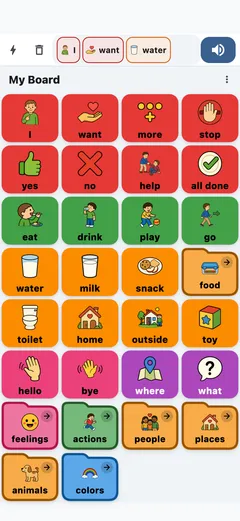
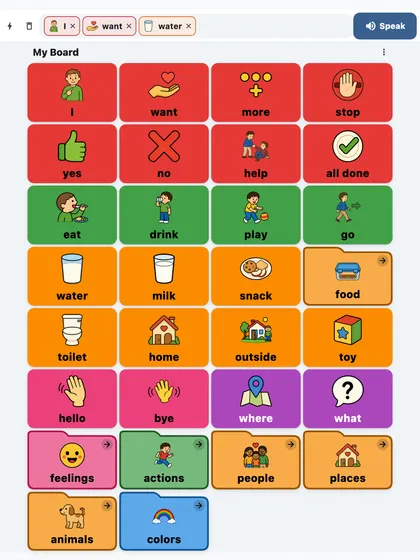
The board is a grid of buttons, each with a picture and a word. Colors follow the Fitzgerald Key, so each type of word is easy to find:
- Core words (red): common words like “I”, “want”, “more”
- Verbs (green): actions like “eat”, “go”, “play”
- Nouns (orange): things like “water”, “home”, “toy”
- Adjectives (blue): describing words like “big”, “hot”, “happy”
- Social (pink): words like “hello”, “please”, “thank you”
- Questions (purple): words like “what”, “where”, “who”
Build a sentence
Tap buttons to add words to the sentence bar at the top. Tap Speak to hear the sentence. The words stay, so you can change them and speak again.
- Tap a word in the bar to remove it.
- Tap Clear all (the trash icon) to start over. Both show Undo for a few seconds.
- With an empty bar, Speak repeats the last sentence.
Choose what a tap does
In Settings → Speech → When a button is tapped, choose Speak it (the default), Add it only, or Hold to speak. Folder buttons always open their board.
Move between boards
Buttons with a small arrow are folders. They open another board, such as Food. Tap Back to go up one board, or Home to return to the main board.
Quick phrases
Tap the lightning icon in the sentence bar to open Quick phrases: whole sentences like “I need help”, spoken with one tap. To keep the sentence you just built, open the sheet and tap Save sentence. Edit the list in Settings → Boards & phrases → Quick phrases.


Next-word suggestions
The strip under the sentence bar suggests next words based on past use. New profiles start with it off. Turn it on or off in Settings → Access → Next-word suggestions.
Find a word
Tap the ⋮ menu in the board header and choose Find word. Pick a result to jump to its board; the button lights up for a moment. Hidden buttons are not listed.
Model without speaking
Modeling means pointing to words on the board while you talk, so the person sees how to use them. To add words without the device speaking, turn on Model without speaking in the ⋮ menu or in Settings → Speech. Tap the speaker-off icon in the board header to turn it off.
Use Sanoo without speech
Turn off Settings → Speech → Enable speech to use Sanoo as a silent board or picture dictionary. The Speak button is hidden while speech is off.
Customizing
Change the words, pictures and layout to fit the person who uses the board.
Open edit mode
Tap the ⋮ menu in the board header and choose Edit board. Enter the PIN if one is set; without a PIN, confirm with Edit board. Tap Done in the toolbar when you are finished.
Add and change buttons
- Add: tap an empty cell and type a label. A matching picture appears on its own when there is one; tap Pictograms to choose another.
- Edit: tap a button to change its label, speak text, color, picture, or the board it opens. More holds its language, emoji, and visibility.
- Move: long-press a button and drag it to another cell.
- Duplicate: open a button in edit mode and tap Duplicate. The copy goes in the first free cell of the board.
- Delete: tap a button, then Delete in its editor. Undo (in the message or the toolbar) brings it back.
- Hide: under More, switch off Show on board. The cell looks empty but keeps its place, so the layout stays familiar.


Pictures and colors
In the Edit button dialog, choose a picture:
- Pictograms: search ARASAAC's free library of 13,000+ symbols. Search uses the button's language.
- Camera or Gallery: use your own photos.
- Customize person: draw a portrait of someone, then reuse it from Saved people.
- Emoji: under More.
For the color, pick one of the six Fitzgerald Key colors, or the rainbow swatch for any other color. Recent custom colors stay in the row.
Grid size and locking
Grid size in the edit toolbar (under ⋯ on a phone) adds or removes rows and columns. Sanoo asks before a smaller grid removes buttons. Lock button positions stops buttons from moving by accident; choose it again to unlock.
Manage boards
Open Manage boards from the edit toolbar or Settings → Boards & phrases to create boards; the ⋮ menu on each board edits, renames or deletes it. The home board is listed first. A new board starts as Small (2×4), Medium (4×4), Large (6×4), Extra large (8×4), or a custom size. To make a folder, edit a button and choose a board under Link to board, or pick New board….
Languages and voices
Add languages and pick a voice for each in Settings → Speech → Languages and voices. Each button speaks in its own language (Edit button → More → Language), so one sentence can mix languages. Voice tuning sets the speech rate (Slow, Normal, Fast) and pitch (Lower, Default, Higher).
Profiles
Each profile has its own boards, quick phrases, history, and speech settings. Add one in Settings → Profile & PIN → Profiles → Add profile, and tap a profile to switch.
Back up and restore
Settings → Backup → Save a backup saves the profile's boards, buttons, and quick phrases as a file. Settings → Backup → Restore from backup replaces them with the contents of such a file. Save a backup before big changes. If the boards have changed and have no backup from the last 14 days, a reminder appears at the top of Settings.
Print boards
Choose Print board in the edit toolbar (under ⋯ on a phone) or tap the print icon in Manage boards, then choose This board or All boards (one page each). The printout has the same pictures, colors and positions as the screen, so it works as a paper backup when the device isn't available.
Settings at a glance
- Profile & PIN: Profiles, Set PIN (Change PIN once one is set).
- Speech: Enable speech, Languages and voices, Voice tuning, the device's text-to-speech settings, When a button is tapped, Model without speaking.
- Display: App language, Appearance (System, Light, Dark), Button style (Full or Outline), Large sentence text, Vibration.
- Access: Ignore repeated taps, Switch scanning and Scan speed, Keyboard, Next-word suggestions.
- Keep Sanoo on screen: Keep screen on, Full screen, Lock app on screen.
- Boards & phrases: Manage boards, Quick phrases, Edit on a computer.
- Backup: Save a backup, Restore from backup (asks before it replaces anything).
- History: Keep sentence history, Most-used buttons (with the last 30 days), Sentence history (which you can export).
- Reset: Replace boards with starter words, Clear history and suggestions. Each asks before it replaces or deletes anything.
- Help & about: Show tutorial, Pictogram credits, Rate Sanoo, Website, the app version, Open-source licenses.


Editing on a computer
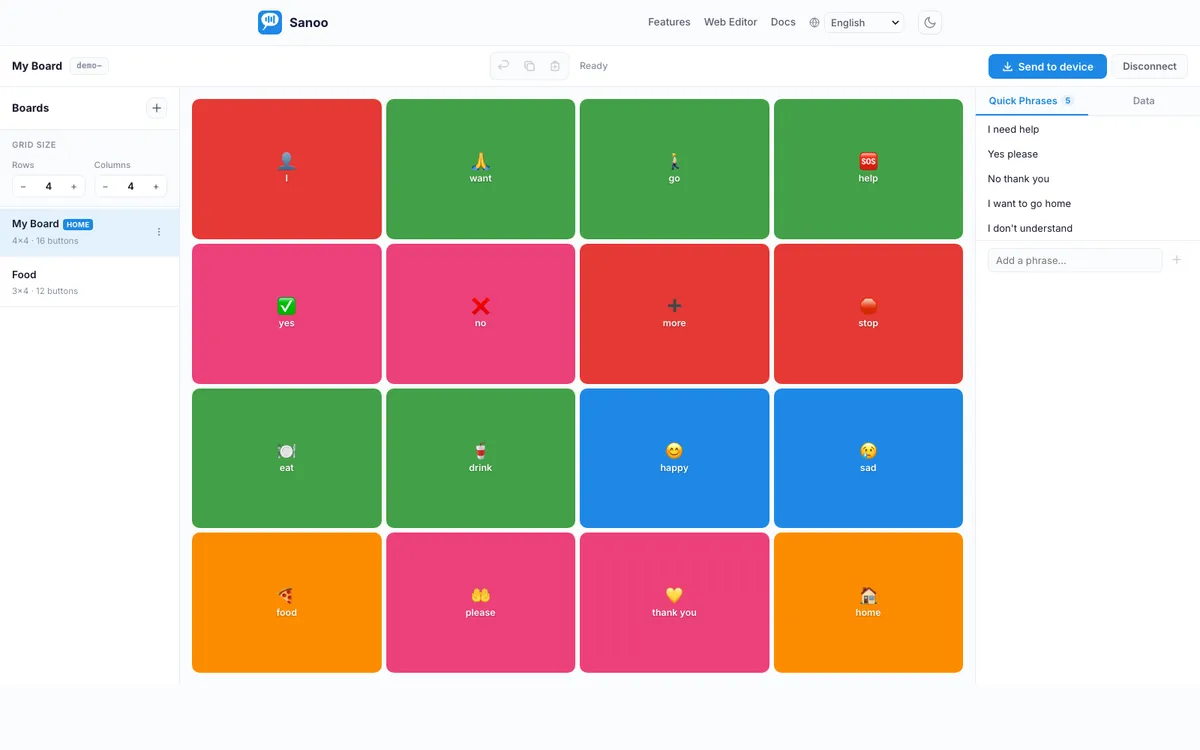
Edit boards on a bigger screen at sanoo.app/editor. There is no account: a short-lived 8-digit code connects the device and the browser.
Try the demo with sample boards
Step by step
- On the device, open Settings → Boards & phrases → Edit on a computer and tap Send boards to computer. Enter the PIN, or set one when Sanoo asks: sending boards always needs a PIN, because they carry photos, names and sentences.
- The device shows an 8-digit code. On the computer, open sanoo.app/editor and enter it within 10 minutes.
- Edit boards, buttons, pictures, and quick phrases in the browser.
- Click Send to device. The editor shows a new code.
- On the device, open Edit on a computer again. Under Get boards from computer, enter the new code and confirm.
What transfers
- All boards and buttons: labels, colors, positions, and links between boards
- Quick phrases
- Photos and pictograms, embedded in the transfer
- Saved people: names and portraits
- Button press counts and up to 200 recent sentences, from device to web only. The editor shows them read-only and the browser never saves them.
Switch scanning and access
Switch scanning lets someone choose words with a single switch. Turn it on in Settings → Access → Switch scanning.
- Sanoo highlights each row in turn, then each button in the chosen row.
- Press the switch to choose. The whole screen acts as the switch, and a switch that sends Space or Enter works too.
- After the grid, scanning visits Speak, Remove a word, Clear all, and Back on sub-boards.
- Scan speed runs from Fast (1 s) to Slowest (4 s).
- Hold the switch for 2 seconds to open the menu, for example to reach Settings.
More access options
- Keyboard: adds a keyboard button to type and speak words that aren't on the board.
- Ignore repeated taps: skips quick double taps, for example from a tremor: Short (0.3 s), Medium (0.6 s), or Long (1 s).
- Large sentence text: bigger words in the sentence bar.
- Vibration: a short buzz on each tap.
- Keep screen on: Always (the default) keeps the screen awake while Sanoo is open. A time lets the screen sleep after that long without a tap, to save battery.
- Full screen: hides the system bars.
- Lock app on screen: keeps Sanoo on screen. Android uses screen pinning; on iPhone and iPad, Sanoo shows how to turn on Guided Access.
Troubleshooting
Sanoo isn't speaking
Sanoo uses the device's built-in text-to-speech. If nothing plays:
- Turn the volume up. On iPhone and iPad, speech plays even in silent mode.
- Check that Enable speech is on and Model without speaking is off, both in Settings → Speech.
- If Sanoo says it couldn't speak, tap Open text-to-speech settings and install a voice for that language.
Tapping a button doesn't speak
Check Settings → Speech → When a button is tapped. With Add it only, words are spoken when you tap Speak. With Hold to speak, keep your finger on the button. Ignore repeated taps can also skip a quick second tap.
The web editor says “Code not found”
Codes expire 10 minutes after they are made, and about a minute after they are first opened. If a code doesn't work:
- Check that all 8 digits are right.
- If more than 10 minutes have passed, tap New code on the device.
- If the code was already opened, make a new one.
- After 5 wrong codes, the editor blocks new tries for 15 minutes.
Changes from the web editor didn't appear
The device only takes the changes when you enter the code from Send to device. If nothing changed:
- Enter the code the web editor showed, not the one the device made.
- If the device says the code was not found, click Send to device again for a new code.
Pictogram search shows nothing
Pictogram search needs an internet connection. If there are no results:
- Check the network connection.
- Search for one common word, such as “eat” instead of “eating breakfast”.
- Search uses the button's language. Change it under More → Language and search again.
I forgot my PIN
On the PIN screen, tap Forgot PIN?, press and hold for 5 seconds, then answer a simple multiplication. This removes only the PIN; boards and settings stay.
Buttons won't move in edit mode
Button positions may be locked. In the edit toolbar (under ⋯ on a phone), choose Unlock button positions, move the buttons, then lock them again.